
TikTok Pixel Integration
TikTok Pixel Integration
Wishlist Hero fires the TikTok `AddToWishlist` event whenever a shopper saves a product, giving your TikTok ads a high intent conversion signal. This guide explains the full cycle, turns the integration on, and verifies the first event.
Available on Silver plans and above. On the Free plan the toggle is replaced by an Upgrade (or Start free trial) button that takes you to billing.
How it works
When the integration is enabled, every successful add to wishlist - from the button on the product page and from the icon on product cards in collections - calls ttq.track("AddToWishlist", …) on the storefront. The event fires when the item is saved, not when it is removed or viewed. The app never installs a pixel itself and asks for no pixel ID: it calls whatever TikTok Pixel already exists on the page (window.ttq). That pixel comes from the TikTok channel on Shopify or a manual install, which is why the settings page asks you to first set up the TikTok Pixel on your store.
Two design details worth knowing:
- our storefront is never at risk: the tracking call is wrapped so any pixel error is only logged in the browser console. The wishlist add itself always completes first - tracking is fire and forget.
- Extra product lookups on collections: on collection pages the wishlist icon often knows only the product handle. To fill in the vendor and category the event needs, the app fetches the product details from your storefront's product JSON. This happens only when a tracking integration (TikTok, Klaviyo, or Google) is enabled, and only for buttons missing that data.
Each event carries the item data TikTok uses for dynamic ads and optimization:
| Property | Contents |
|---|---|
| content_type | product |
| currency | The currency the shopper sees (multi currency aware), or the store currency |
| value | The displayed product price, as a number |
| contents[0].content_id | Product ID |
| contents[0].content_name | Product title |
| contents[0].content_brand | Product vendor |
| items[0].item_brand | Product vendor |
| contents[0].content_category | The collection the shopper was browsing, or the product type when there is no collection context |
| contents[0].content_variant_id | Selected variant ID |
| contents[0].price | The displayed price, as a number |
| contents[0].quantity | 1 |
Note the item details sit inside a `contents` array of one entry - TikTok's current standard format - not as flat properties. The admin page shows the exact payload under What is being tracked? with an expandable example.
What you need before enabling
- A TikTok Ads Manager account with a pixel created for your store.
- The pixel lives on your storefront - the simplest path is the TikTok channel app on Shopify, which installs the pixel for you (see the TikTok Pixel for Shopify guide, the same link the settings page shows).
- Confirm the base pixel works first: with the TikTok Pixel Helper browser extension open, your storefront should show base page events before you touch anything in Wishlist Hero.
Enable it
- Go to Settings and open the TikTok Pixel Integration page.
- Switch the toggle to Enable - the setting saves immediately, there is no separate save step. The storefront picks up the new configuration automatically.
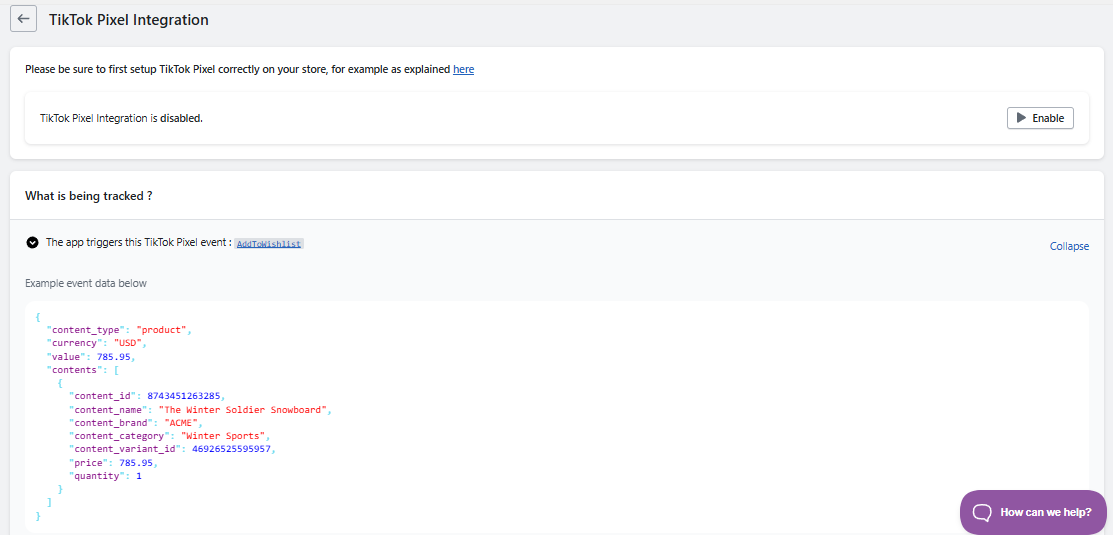
Verify the first event
- Install the TikTok Pixel Helper (Chrome extension) and open your storefront.
- Save a product to the wishlist.
- Check the helper: an AddToWishlist event should appear with the product's content data.
- Cross check in TikTok Ads Manager > Assets > Events > Test Events with your own browser.
Use the event
- Build retargeting audiences from AddToWishlist: savers are warmer than viewers and cheaper to convert than new traffic.
- Optimize for the event in campaigns aimed at demand capture rather than discovery.
- Match creative to the behavior: shoppers saved a specific product; dynamic creative that features saved style categories outperforms generic brand spots.
When the setting turns itself off
The feature is plan restricted, and the app enforces that automatically. The toggle flips back to disabled when your store moves to the Free plan - on downgrade, when a trial expires, or when a development store graduates. After any of these, just upgrade and switch it back on.
Troubleshooting
| Symptom | Fix |
|---|---|
| No event on save | Confirm the TikTok Pixel itself is live (the helper shows base events), then hard refresh and retry |
| Event fires without brand or category | Test from a product page, which has full data; collection icons fetch it on demand, so a failed fetch can leave them blank |
| Event value in an unexpected currency | The event reports the currency the shopper sees, not always the store default |
| Toggle switched off on its own | Your store moved to the Free plan (downgrade or trial expiry); upgrade and re-enable |
| Wishlist works but console shows a TikTok warning | Expected fail safe: tracking errors are logged and never block the add to wishlist action |
| Events seen locally but not in Ads Manager | Test Events requires the matching browser; use the same session you verified with |