
Google Analytics
Google Analytics
Wishlist Hero fires the standard GA4 `add_to_wishlist` event whenever a shopper saves a product, so wishlist intent shows up beside your other GA4 ecommerce data. This guide connects the integration and verifies the first event in about ten minutes.
Available on Silver plans and above. On the Free plan the toggle is replaced by an Upgrade (or Start free trial) button that takes you to billing.
How it works
When the integration is enabled, every successful add to wishlist - from the button on the product page and from the icon on product cards in collections - calls gtag("event", "add_to_wishlist", …) on the storefront. The event fires when the item is saved, not when it is removed or viewed. The app never loads a Google tag itself and asks for no measurement ID: it calls whatever gtag already exists on the page. That tag comes from your Google Analytics 4 setup or the Google channel, which is why the settings page asks you to first set up Google tagging on your store.
Two practical consequences of that design:
- No tag, no event, no errors: if the Google tag is missing, the integration stays silent - nothing breaks.
- Extra product lookups on collections: on collection pages the wishlist icon often knows only the product handle. To fill in the vendor and category the event needs, the app fetches the product details from your storefront's product JSON. This happens only when a tracking integration (Google, Klaviyo, or TikTok) is enabled, and only for buttons missing that data.
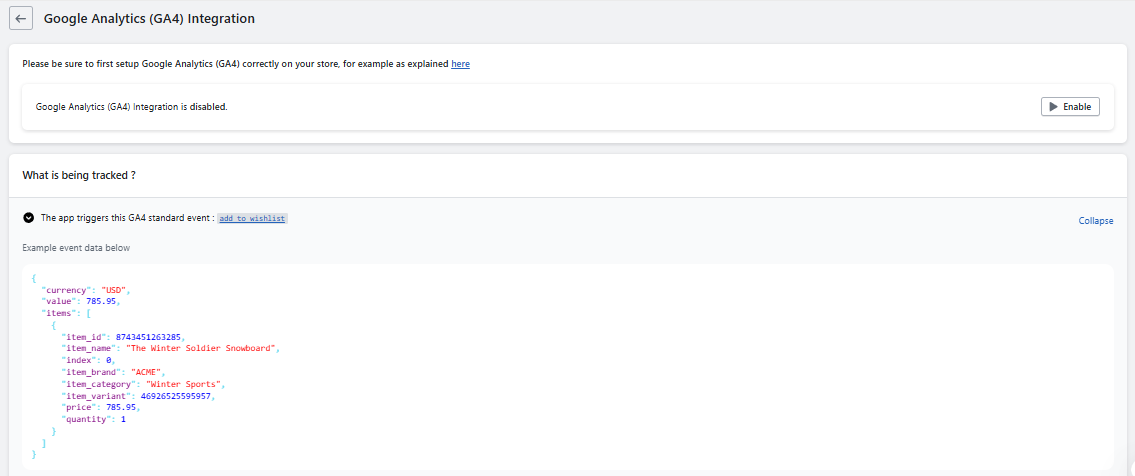
Each event carries full ecommerce item data:
| Property | Contents |
|---|---|
| currency | The currency the shopper sees (multi currency aware), or the store currency |
| value | The displayed product price, as a number |
| items[0].item_id | Product ID |
| items[0].item_name | Product title |
| items[0].index | 0 - the event is always a single item |
| items[0].item_brand | Product vendor |
| items[0].item_category | The collection the shopper was browsing, or the product type when there is no collection context |
| items[0].item_variant | Selected variant ID |
| items[0].price | The displayed price, as a number |
| items[0].quantity | 1 |
The admin page shows the exact payload under What is being tracked? with an expandable example, so you can compare against what arrives in GA4.
Enable it
- Set up Google Analytics 4 or the Google channel on your store first, so the Google tag is live on your storefront.
- Go to Settings and open the Google Tag Manager Integration page.
- Switch the toggle to Enable - the setting saves immediately, there is no separate save step. The storefront picks up the new configuration automatically.
Verify the first event
- Open your storefront, open browser developer tools, and start a GA4 DebugView session (or use the Google Analytics DebugView with your own client).
- Save a product to the wishlist.
- In GA4, open Admin > DebugView and find `add_to_wishlist`.
- Expand the event and confirm the item parameters match the product you saved.
Use the event
- Mark it as a key event in GA4 admin so it appears in reports and can feed audiences
- Build an audience of shoppers with `add_to_wishlist` for retargeting: they showed intent without purchasing
- Attribute campaigns: compare `add_to_wishlist` volume against email sends and ad sets to see what creates demand
When the setting turns itself off
The feature is plan restricted, and the app enforces that automatically. The toggle flips back to disabled when your store moves to the Free plan - on downgrade, when a trial expires, or when a development store graduates. After any of these, just upgrade and switch it back on.
Troubleshooting
| Symptom | Fix |
|---|---|
| No event in DebugView | Confirm your Google tag is live on the storefront (check for a gtag call in the page source), then hard refresh |
| Toggle was already on, still nothing | The toggle guards the call; the tag must exist too. Both are needed |
| Toggle switched off on its own | Your store moved to the Free plan (downgrade or trial expiry); upgrade and re-enable |
| Event arrives without vendor or category | Test from a product page, which has full data; collection icons fetch it on demand, so a failed fetch can leave them blank |
| Event value in an unexpected currency | The event reports the currency the shopper sees, not always the store default |
| Events only for some shoppers | Event fires per add action; test in a private window with your own visit |